
Before creating enrolment tickets, its advised that your account requires your customers to register/login to a Pebble account at checkout . If you're unsure whether this has been enabled, contact support@bookpebble.co.uk.
1. Enabling & Setting Up Enrolment Tickets
To allow customers to reserve spots without immediate payment, configure an Enrolment Ticket within your activity settings:
- Open an activity in Pebble.
- Select the Ticket setup tab.
- Create or edit a ticket.
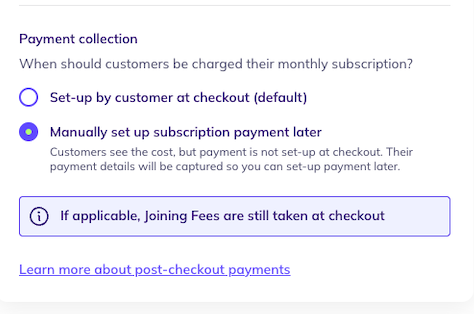
- Within the pricing setup, you'll see a payment collection section. There are two options within this section.
- Set up by customer (default): Standard flow where customers pay for their subscription at checkout.
- Manually set up subscription payment later: Payment details are collected at checkout, but the subscription payment is not initiated.
- Finish configuring the ticket and click Save.
NOTE: at the moment, customers will NOT be able to book a trial on tickets that have been set up as Manually set up subscription payment later.
2. Payment Collection Options Breakdown
Set up by customer (default
-
Default options.
- Payment is set up by the customer at checkout. Customer pays the pre-rated or monthly subscription fee directly at checkout. Billing starts immediately.
- Use this option if your customers have one or few subscription bookings. Each booking generates a subscription payment, which is paid monthly.
Manually set up subscription payment later
-
Customer checks out for £0.00 upfront. Card details are captured, but no subscription is created yet.
- Use this option if your customers are booking many subscriptions, you offer multi-subscription or sibling/group discounts in place or subscription bookings require review before payment is set up.
- This option will allow you to review a customer's bookings and group all the bookings under a single monthly subscription payment.
- During the customer booking journey we will still indicate the cost of the ticket to the customer as an indication of what they will pay once the subscription payment has been set up
3. Customer booking experience
-
Customers, when booking a ticket that has been set to manually set up subscription payment later we'll see a 'Enrol' CTA rather than a 'Subscribe' CTA.
- At the moment, customers will NOT be able to book a trial on tickets that have been set up as Manually set up subscription payment later.
- Mandatory Login: Customers must log in or create a Pebble account during checkout to link bookings to a single profile.
- Zero-Upfront Checkout: The checkout screen shows £0.00 Total to pay now and notes that card details are collected for future payment setup by the provider.
- Joining Fees: The exception to a zero-upfront checkout is joining fees. If a joining fee is required in order to enrol onto the activity then this will be charged at checkout. However, the ongoing subscription payment will not be set up at checkout.
4. Creating and Managing Subscription Groups
In order to keep track of new enrolment bookings as they come in - a new Subs Enrolment Bookings section has been created in the Finance Dashboard.
This page shows, per customer, all enrolment bookings that have been made and have not been assigned to a subscription payment group yet.
From this page, you can easily jump to the customer to start setting up a subscription payment group.
To create a subscription payment group:
- Head to the customer's profile.
- Navigate to the Booking History section, Subscriptions tab
- Click Create subscription payment to open the side drawer.
- Once the side drawer has expanded, it shows all subscription bookings that are eligible to be grouped under a single payment group.
NOTE: You can ONLY group subscription enrolment bookings or free subscription manually added bookings under a subscription payment group. You cannot group a booking that has a payment attached to it under a subscription payment group - these are excluded from the side sheet. - Once you have selected the bookings to group under a payment - you can then set the First payment date, First payment amount, and Future monthly payment amount.
- Enter an optional Subscription description (e.g " Dance + Sibling Discount Package") and click Confirm.
- Pebble confirms the creation of a payment group to the customer upon confirmation via email.
5. Payment Group Lifecycle Management Actions
Edit - Modify included activities or alter the monthly price. You can adjust this as the range of activities that the customer has booked on to changes, or if there are any changes to the underlying subscriptions. Pebble send automated customer communications when an edit occurs via email.
Pause/ Resume - Temporarily suspend payment collection, until you resume. Stops billing without cancelling register spots. Pebble send automated customer communications when a payment group is paused or resumed via email.
Cancel - This cancels the subscription payment group. The underlying bookings are not cancelled they are just removed from the group. Bookings must be cancelled separately. Pebble send automated customer communications when a payment group is paused or resumed via email.
Refund - View invoice history and issue individual refunds. Standard subscription refund process per individual invoice. Pebble send automated customer communications when a payment group is refunded via email.
5. Customer Profile View
Customers can view their subscription payment groups within their profile: https://activities.bookpebble.co.uk/profile
From this view, they can view the bookings that are grouped under a single payment and they can update their payment method if required
manage their consolidated charges under Guardian Profile > Subscriptions:
- Unified Billing: View the total monthly payment, custom provider notes, and linked attendee activities in one place.
- Card Management: Click Update payment details at any time to update saved payment methods.
- Activity Details: Click individual bookings within the group view to check schedules and locations.