
In this article:
How to take class registers
Step 1: Where to Find Your Registers
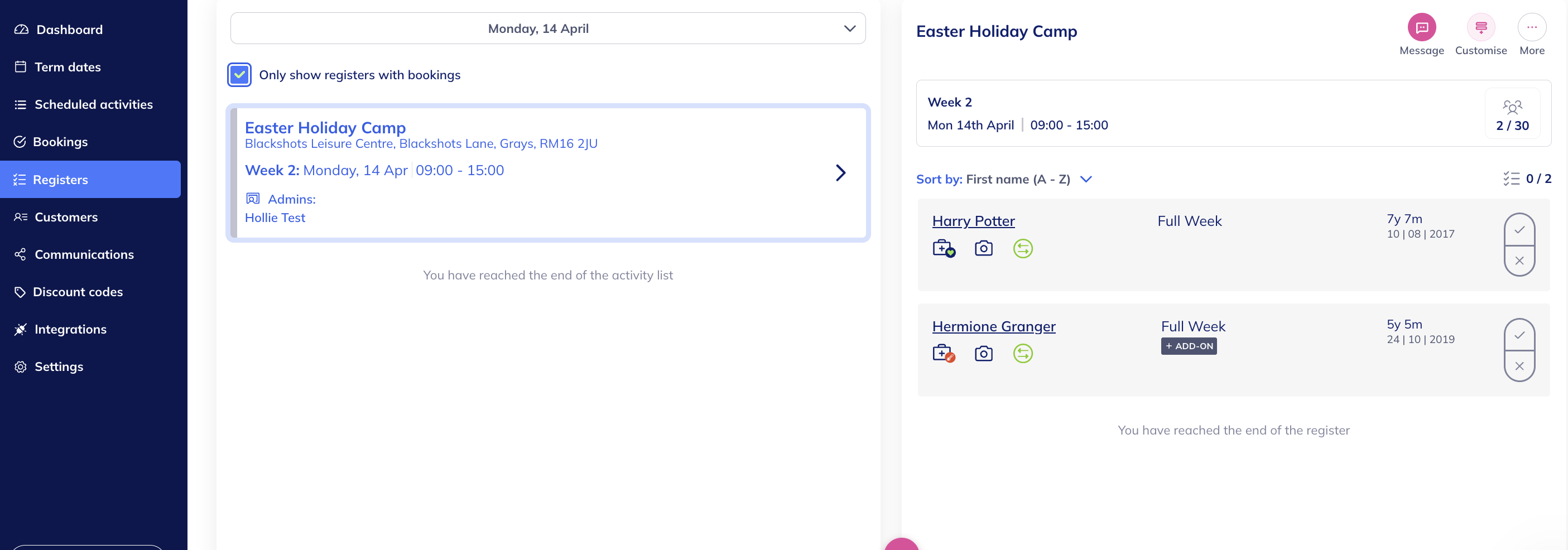
Go to the Register tab on the left hand menu.
By default, this will show registers for today’s date
Or click the date to open a calendar and select another day.
Dates with registers will appear as blue squares in the calendar view.
Use the Only show registers with bookings filter by clicking the tickbox to hide empty registers without bookings
User Access:
Admins can view all registers across the account.
Non-admin users will only see registers they’ve been assigned to.
Learn more about user roles
Step 2: How to Record Attendance
Click the class you want to register
You’ll see a list of all booked attendees
Click the tick to mark an attendee as present, or the X to mark them as absent
🔷 Pro Tip:
If you’re using Advanced Registers, you can also:
Timestamp when an attendee was checked in and out of care
Record which staff member completed the check-in or check-out
What You Can Do from the Register View
From each class register, you can:
Send a message to the full register via SMS or Email (WhatsApp coming soon)
Customise your view to show medical info, add-ons, collection details, etc.
Move an attendee to another session
Add an attendee (manual or invite)
Cancel or refund an attendee
Access the attendance overview
Export or print the register
Open the attendee modal for booking, contact, or medical details
You also have filtering options to sort the register by:
Medical needs
Photo consent
Attendance status
Age
Ticket type
Attendee name