
Why create a subscription?
-
Generates repeat business for you
-
Saves setup time, if you run many sessions throughout the year
-
Improves customer loyalty
-
Allows you to spread the cost for your customers
-
Occupancy optimisation- if you cancel a parents subscription, we'll automatically list the session so another parent can snap it up straight away
1. Setting up subscriptions
1.1 Choose how you want your customers to pay
When choosing to ‘Add an activity’ you’ll s ee two options - the first is to add a Block or Individually bookable activity. The second is to create a Subscription activity.
A subscription activity will allow you to set up weekly recurring activities with no end date. Pebble subscriptions charge a pro-rated amount for the first month, calculated based on the number of sessions remaining in that month. Moving forward, on the 1st of each month, a fixed recurring monthly charge will be applied.

1.2 Add all the key details about your subscription
On the details tab, the first thing you'll need to do is add all the key details about your subscription:
-
Activity Name
-
Activity Description
-
Subscription details - this is any further information you want to communicate relating to your subscription
-
Age range
-
Location
-
What customers need to bring and what you supply
-
Activity images
-
Activity category
1.3 Setting up your schedule
1.3.1 Defer first payment date (optional)
-
By default, customers will be charged for the remaining number of sessions in the month when they take out their subscription. They will then be charged for future months on the 1st each month.
- If you want to take bookings for your subscriptions now but delay the date the subscription starts then you can set this up by setting the first payment date in this section. Customers who book before this date won’t be charged until then, and migrating customers will start paying on this date too.
-
If a future start date is set, the customer’s first subscription payment will be taken on the day set. Unless a trial period has been applied - in this case the customers first subscription payment will be taken after the trial period ends.
- You can choose whether a full month or pro-rated cost is taken on the deferred first payment date.
1.3.2 Let customer pick their start date (optional)
- By default, when a customer books a subscription, they are booked on to the next available session.
- Switching on 'Let customers pick their start date' will allow customer to select a start date further into the future, beyond the next session.
- You are able to set how many sessions into the future a customer can book. The maximum being 11.
- Example:
You enable "Let customers pick their start date" and set it to one session.
Next Session: Thursday 20th of August
At checkout customers will have the option to start their subscription from either:
- Thursday 20th August
- Thursday 27th August - Joining fee or paid trial charged immediately. The first recurring subscription payment is scheduled for the date of session they selected.
- Automatic Capacity Reservation: Future bookings instantly reduce class capacity for all interim sessions to prevent overbooking.
- Register Notices: Attendees will not clutter daily registers before their start date arrives. An automated register banner keeps staff informed about reserved spots for upcoming starters.
- The selected start date is clearly displayed on the Activity Booking Page, Booking Confirmation, and automated Email Communications sent to both parents and providers.
1.3.3 Include a trial (optional)
We understand that committing to a subscription may be daunting for your customers. So we’ve built functionality that allows you to offer up to three free or paid trial sessions.
Free trials
-
You can offer up to three free trial sessions.
-
The customers subscription begins after the trial period unless cancelled by you at the customer's request.
-
After your trial ends we'll calculate the amount the customer needs to pay for the remaining sessions in the month after the trial period. We'll charge this 2 hours before their first paid session, when their trial ends.
-
After the initial pro-rata payment all monthly customer subscription payments will be collected on the first of the month.
-
If the customers wishes to cancel their subscription after the trial, then they will need to contact you to request cancellation (subject to your T&C's).
Paid trials
-
You can offer up to three paid trial sessions
-
Upon beginning the trial the customer will immediately pay the upfront cost of the trial.
-
The customers subscription begins after the trial period unless cancelled by you at the customer's request.
-
After your trial ends we'll calculate the amount the customer needs to pay for the remaining sessions in the month after the trial period. We'll charge this 2 hours before their first session after their paid trial.
-
After the initial pro-rata payment all monthly customer subscription payments will be collected on the first of the month.
-
If the customers wishes to cancel their subscription after the trial, then they will need to contact you to request cancellation(subject to your T&C's).
1.3.4 On these days and times - setting up the schedule
On the Schedule page you can add the days of the week on which your subscription occurs.
You won’t need to add a date range as subscriptions are created with no end date. Don’t worry though - you’ll be able to cancel a customer’s subscription when you want (more about that later).
You then define the times that the subscription occurs on those days.
Your customers will subscribe to a day and time slot that repeats weekly.
1.3.5 Add your off-days (optional)
Subscriptions are set up with no end date - but of course, there will be situations when you won’t be able to run an activity on a particular day (e.g. holidays, inset days, half term). So we’ve built a feature that allows you to indicate ‘off days’. These will be communicated to your customers before they make a booking.
After setting up your activity you’ll be able to update your off-days if anything changes. Every time you update your off days we’ll email your customers to inform them of the update.
1.4 Set your capacity
Next navigate to the Capacity tab to set your subscription capacity. Each day and time slot combination requires a capacity to be set - e.g Tuesdays 09:00-10:00
1.5 Setup your tickets and prices
1.5.1 You can set different ticket prices for your subscription activities.
- Click 'Create ticket'
- Add a ticket name and description
- Next, you have to set a pro-ration rate. The first month will be charged at this rate, multiplied by the number of remaining sessions.
NOTE: The pro-rated cost for the first month will be capped at the recurring monthly subscription cost. - Next, you have to set the recurring monthly cost. Moving forward, on the 1st of each month, this fixed recurring monthly charge will be applied.
-
Finally define if the ticket should always be available to be booked or whether there are any restriction date
1.5.2 Splitting a yearly cost
The fixed recurring monthly cost will split the yearly cost of a subscription into equal payments throughout the year for all sessions. This will be the same cost each month regardless of how many sessions are running in that month - you should therefore prorate your payment to account for any off-days.
TIP:
-
Take the total number of sessions you have in a year (eg. 42), multiply it by the cost of an individual session (eg. £20).
-
Take the total cost of the year (eg. £840) and divide it by 12 to get the fixed recurring monthly cost (eg. £70).
-
This spreads the cost evenly across the year.
2. Manage your subscription bookings
Your Subscriptions bookings are held in the ‘Subscription’ section accessed from the bookings page. If you click on a particular activity then you’ll be able to see all the subscriptions for a particular day of the week and time.
When you expand an activities subscriptions bookings you’ll see all the information about each booking.
-
First session: This is the Child’s first session. We’ve added a ‘Trial’ tag to indicate if the Child’s first session is/was a Free or Paid trial
-
Next payment: The date we will next take payment from the customer.
-
If this date is the first of the month then this is their standard recurring monthly subscription payment
-
If this date is any other payment than the first of the month then this is the date we will be collecting their pro-rata payment after their trial period ends
-
-
Last payment attempt: Pebble's system is built to ensure ongoing payments are collected from your customers. If a payment fails (eg the customer's card expires), we will notify the customer so that they can update their details if necessary - and we automatically make 3 further attempts to process the payment. You can see the status of the payments here - if the payment fails after the 4th attempt, you can either arrange payment directly with the parent or contact our support team for further assistance. The following month, we will retry the payment again (unless you cancel the subscription).
-
Status
-
Active - subscription is active and all payments are up to date
-
Failed - subscription is active but the last payment collection failed.
-
Paused - subscription payment collection has been paused
-
Cancelled - subscription has been cancelled. No further payments will be collected.
-
-
Manage: by clicking on the three dots under the manage column you can access the following actions
-
Pause/Resume - Here you can pause and resume PAYMENT COLLECTION for an attendee. Attendee’s we still remain on registers but payment collection will be paused. Attendees who have been paused will be flagged as paused on the bookings page, attendance overview and registers.
You have the option when resuming a subscription to either:
a) Resume and charge - When you click ‘Confirm,’ the customer(s) will be immediately charged for the remaining sessions of this month. However, they will not be charged if they have already paid for this month, are still in their trial period, or if their subscription is deferred and has not yet started.
b) Resume, do not charge - When you click ‘Confirm,’ the customer(s) will NOT be charged for the remaining sessions of this month. However, you will have the option to invoice them separately.NOTE: You can also bulk pause or resume subscriptions by clicking on the three dots in each subscription sessions header.
-
History - Here you can review the payment history for a subscription, process refunds and and access any unpaid invoices
-
Payment - Here you can update price of an attendee's subscription for the next AND all future months.
This also allows you to change the pro-rated amount that will be charged after a trial ends or the deferred payment date is reached - please note that this will also update the cost for all monthly payments as well.
NOTE: You can also bulk update subscriptions by clicking on the three dots in each subscription sessions header and clicking the 'Payment' CTA . -
Cancel booking - You have the ability to cancel a subscription at any point - this will cancel the next payment for the customer and automatically calculate a ‘Final session date’ - this is the final session the child can attend in their month's subscription. If you need this final session date amended, please contact our support team who can manually adjust this.
-
3. Extending Trial Dates
-
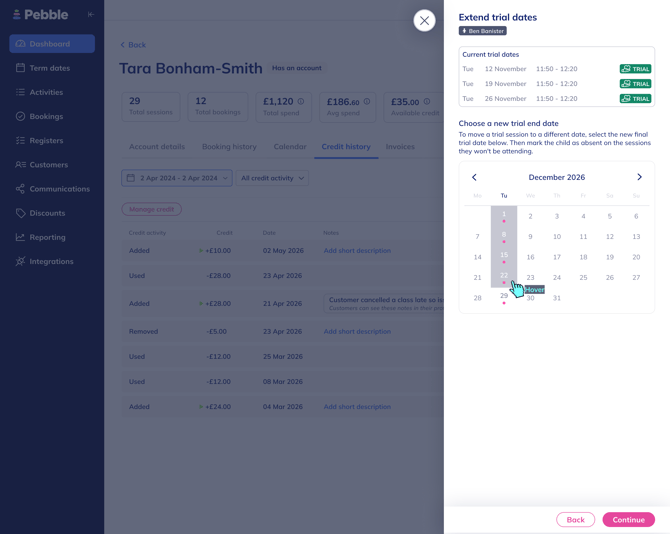
First click on the attendee - this will open up the Attendee Booking side sheet. In the side sheet you will see the Extend Trial Dates CTA - click on this and you will see the below screen.
-
The attendees current trial dates are listed out at the top. On the calendar dates with a pink dot indicates the dates of the activity.
-
Select a new final trial date - then click 'Confirm'.
-
You'll then be taken to the review screen to view the updated trial dates.
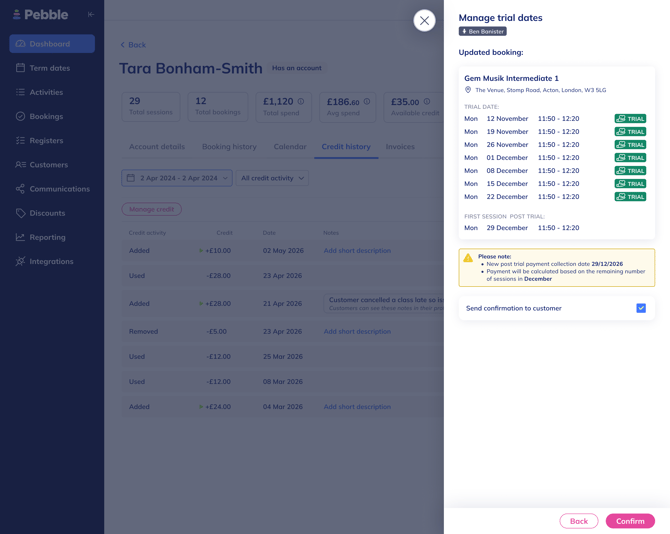
- The new post trial payment date will be indicated. Post-trial payment will be calculated based on the remaining number of sessions in trial end month.
We value your input and are always looking for ways to improve our communication and services.
If you have any questions or feedback, please don’t hesitate to get in touch with our CS team at support@bookpebble.co.uk or on the live chat support.