This is a guide on how to use Pebble as a non-admin (coach, class teacher, so on) - if you'd like to know how to create and assign users as an admin please follow the below link.
As a non-admin you can use Pebble to manage the activities you are responsible for.
What do I have access to?
✅ Registers
✅ Marking attendance
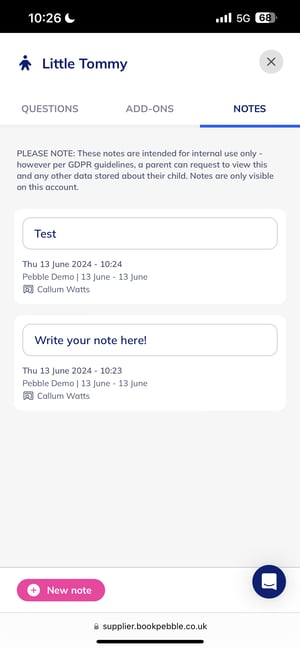
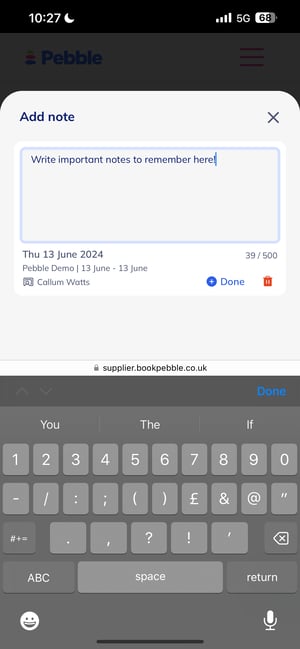
✅ Leaving notes
✅ Contact details
✅ Answers to booking questions
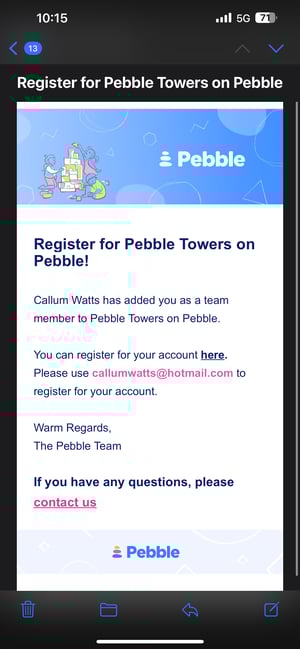
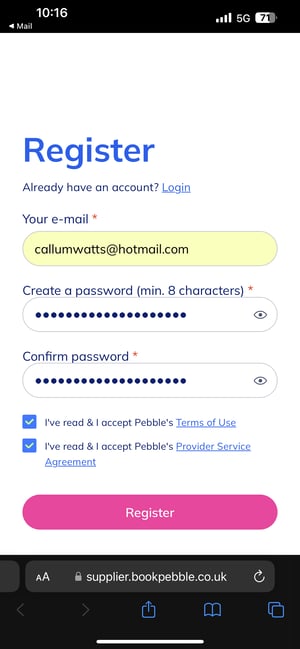
Setting up your account
Finding registers v1 and v2
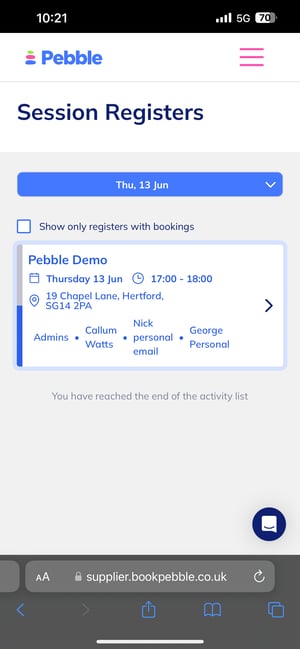
Marking attendance
Read here for the full article on how to mark attendance: https://intercom.help/bookpebble/en/articles/8228117-how-to-take-class-registers

Finding details about the Guardian
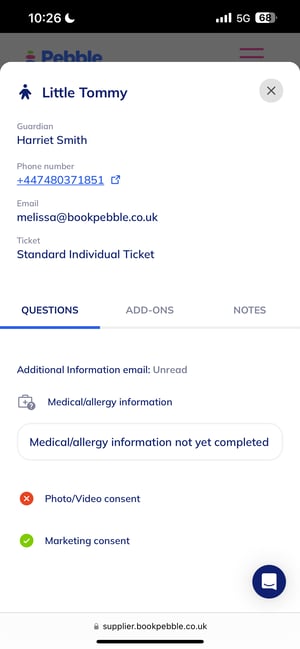
If you click on a child's name, you can see all the details about their guardian and the booking - including the email address, phone number, and answers to any booking questions asked.
Leaving a note
You can leave a note for a child on the register, and this will save across all activities where the below matches:
Guardian phone number
Child's name